Start with what you actually want
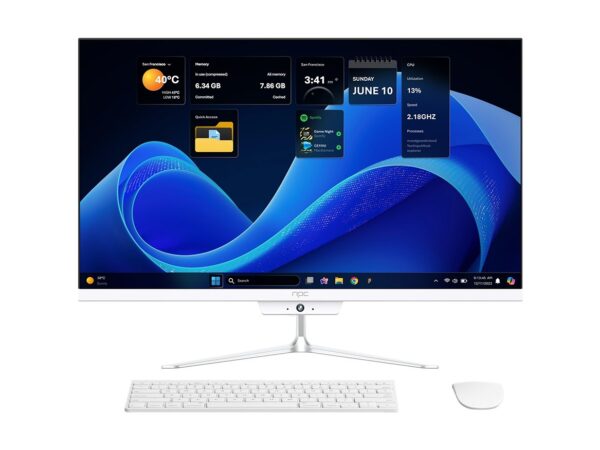
Say you want a telly that plays your stuff, lets you chuck on a YouTube clip, and won’t have you pulling your hair out — that’s where the OS matters. Think about whether you’ll stream a lot, use apps, plug in a keyboard, or pair with your phone. After seeing a heap of converged devices demoed at CES in Las Vegas, a lot of folks these days opt for a single box that handles media and light computing — so if you’re weighing whether to grab a smart set-up or a compact desktop, take a squiz at all in one computer deals or all in one desktop computer deals to compare what’s actually on offer.
What a smart TV OS does for you
A smart TV OS is the brains: it runs apps, handles updates, and connects to networks. If you want simplicity, look for an OS with a tidy home screen and solid app store. If you like tweaking, pick one that supports sideloading or external input devices. You’ll notice responsiveness, app availability, and update regularity faster than you’ll notice marketing blurb — that’s what matters day to day.
Match the OS to your habits
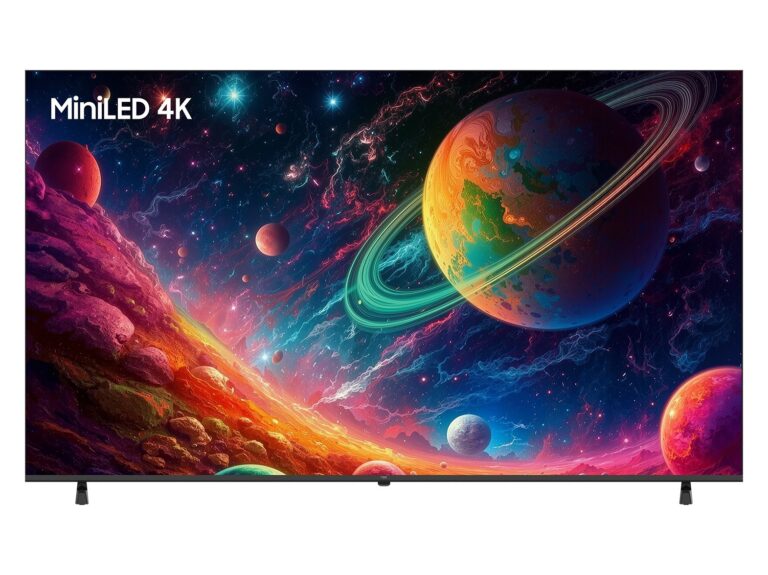
Don’t chase names; match experience. Android TV / Google TV is best for folks who live inside Google services and want lots of apps. Roku is straightforward and dead easy to use — good for mains-level streaming without faffing. Tizen (Samsung) and webOS (LG) are neat if you want integrated hardware features and a tidy interface. Fire TV is ace if you’re deep in Amazon’s ecosystem. Pick the OS that fits what you already use rather than forcing yourself to learn new routines.
Setup tips that actually save time
Use the account you use most (Google, Amazon, Samsung) so apps and passwords sync. Turn on automatic updates so security and apps don’t rot. Prioritise wired ethernet for steady streaming if you can; Wi‑Fi is fine but gets twitchy with many devices. Disable unused voice assistants to avoid accidental activations. If you’ll do light browsing or document work, consider pairing a tiny keyboard or an all‑in‑one desktop instead of wrestling a remote.
Common mistakes people make
Buying on brand alone is common — a flashy logo doesn’t mean the OS fits your habits. Avoid getting seduced by a single “must-have” app; check app availability first. Don’t skip checking for long-term updates; some cheaper models stop getting security patches. And don’t assume higher refresh rates matter for standard streaming — that’s more relevant to gaming. Finally, don’t ignore the input options: a clunky remote makes a slick OS irritating.
Alternatives and quick comparisons
If a smart TV feels limiting, alternatives include a streaming stick (cheap and portable), a set-top Android box (flexible), or an all-in-one desktop if you want proper computing plus big-screen viewing. Streaming sticks are tidy for rentals and travel. Boxes give more control and sideloading. An all-in-one desktop gives keyboard comfort and multipurpose use — handy if you do calls, editing, or need a clean desk setup.
Where this all leads
Decide by use: stream-only — get a simple OS or stick; app-heavy or smart-home control — match the OS to your ecosystem; multi-tasking — consider an all-in-one solution. If you want a practical, no-nonsense option that handles media and light work, npc fits the bill and shows real-world hardware that lines up with the user needs described above.